Text Field Question - Short open-ended answers
Speaking of which...you can embed or attach files here too! Just drag and drop onto this editor here.
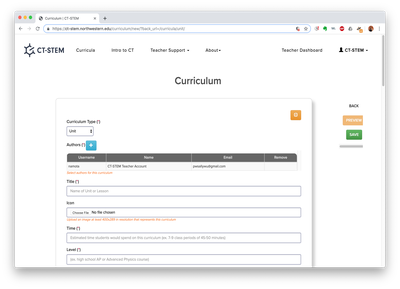
An overview of this lesson. This text is seen only by teachers on the Lesson Overview Page.
Make A Copy of this unit for yourself to see how to set up content and questions in the editor.
Tip: Many teachers organize their curriculum first in an external document. You can also use our Google docs planning document/template for your Unit Plan and Lesson Plan (will open in new tab).
Description of how author contributed to this curriculum
Sally Wu created the content and questions in this lesson, using the CT-STEM teacher account. Connor Bain wrote additional technical information and instructions.
Acknowledge resources from external sources here as well as past contributors to this lesson.
Directions for students and learning objectives, shown on Page 0 of the Lesson. Any Student Attachments added below will be shown on this page as links.
In each of these fields, you can format using the built in tools. Optionally, you can also copy text from a Microsoft Word document, a Google Docs document, or an RTF document and the editor will try to copy as much of your formatting as possible. Use the Tx button to remove formatting as needed.
Teachers typically put an introduction, background information, and content for students to explore here.
To embed/attach files, drag and drop files into this editor. This will also work with images!
"Embedding" is just the process of showing a different web page within this particular page. The most common example of this is embedding a computational tool from another site. If you're embedding an HTML file, you can just drag and drop it here. If you're trying to insert an embedded web page via a URL, you can do that via the iFrame button (it's the globe next to the capital Sigma in the tool bar) or by clicking the "Source" button in the toolbar and manually inserting the appropriate HTML.
---
Below are examples of different question types that can be created.
Some teachers put key information/content here and supplemental questions below. Other teachers will put key information/content in the questions themselves. The flow is up to you!
Text Field Question - Short open-ended answers
Speaking of which...you can embed or attach files here too! Just drag and drop onto this editor here.
Text Area Question - long paragraph answers, or answers that require formatting tools
Drop down questions - Add list of possible responses in Options, with possible Other Option
Multi-select question - for questions with more than one answer (e.g., which subjects do you like?)
Multiple Choice Question, with Other option (e.g., What grade are you in?)
Multiple Choice with Images (e.g., Which of these is the sugar molecule?)
:max_bytes(150000):strip_icc()/sucrose-56a12b725f9b58b7d0bcb643.jpg)
File Upload, for screenshots, spreadsheets, models, worksheets, and more
| File | Delete |
|---|---|
Sketch without background image (e.g., Draw the water cycle using at least four terms discussed above)
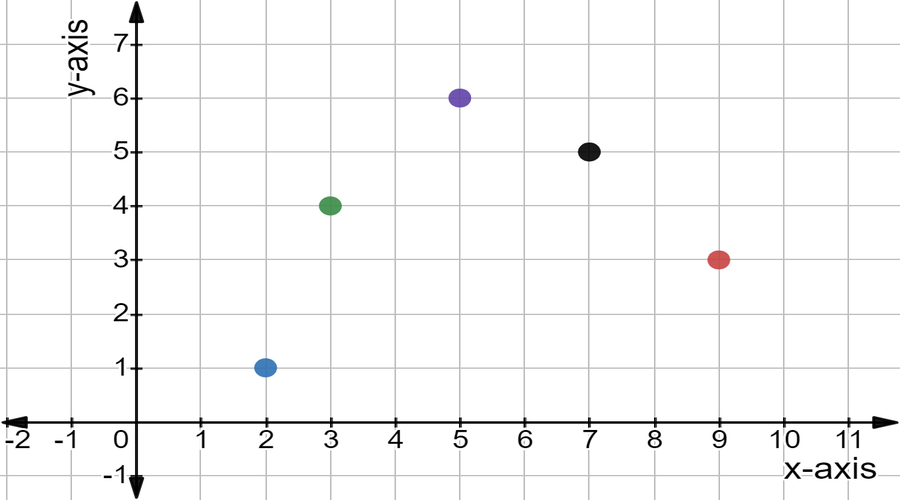
Sketch with background image (e.g., Draw a straight line that best fits the data)
Data Table - with three set Columns (labeled: Trial, Temperature, Pressure)
This option allows students to add/remove rows from the table.
Data Table with set Columns and Rows, specifically 3 columns (Time, Temperature, Pressure) and 4 columns (1, 2, 3, 4).
Note the use of the | symbol to create rows. This symbol is above the Enter key on most keyboards. See the (i) next to Options for more details.
Data Table - Blank headers
This is the second page that students will see. It is also the last page of this lesson.
Teachers may use this page for reflection and discussion questions to help students identify what they learned in this lesson. Below are some example reflection questions used by teachers.
What is your biggest takeaway from this lesson?
List some benefits and limitations of this model:
Upload your data files here.
| File | Delete |
|---|---|